SAP Custom Page Format
SAP Custom Page Format
Page Format
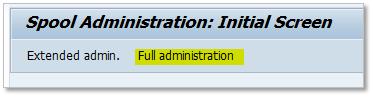
Go to SPAD transaction and first press Full administration button.
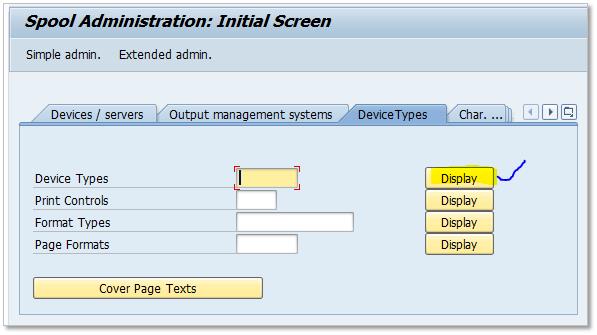
You will then see Device Types tab. Navigate to Device Types tab and press Display next to Page Formats input.

This will give you list of all Page Formats defined in system, you can check this list to see if any of these matches your paper size. If it does then you won’t need any new Page Formats.
To create new Page Format first go to change mode and then press new button. Enter name of Page Format, Orientation and Dimension of page and save.
The page dimensions and orientation specified page format is just for smartform and sapscript and it do not affect any printer.

Format Types
Go back to transaction SPAD Full administration mode and under Device type click on Display next to Format Types input.

On next screen click on new button and create new format type ZCH1, yes Format Type and Page Format should have same name. Make sure you choose ‘Format type for SAPscript’ then select Page Format, Select Portrait specify something meaningful in comment and save.

Now run SPAD in Full adminstation and under Device Types tab click on Display next to Device Types input.
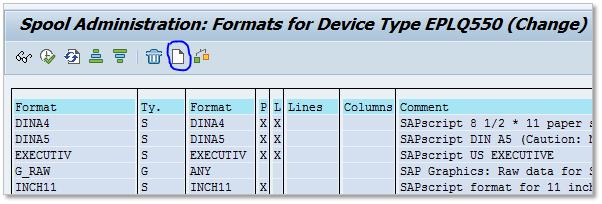
Double click on device type which you have found in previous step and you should see details of device type. Click on Formats button and it will take you to list of formats currently supported by Device type.

On this screen, where list of supported format is displayed, click on new button.
And specify Format Type which we just created.
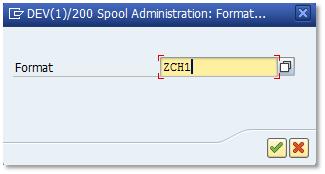
Press OK to add Format type to Device type.
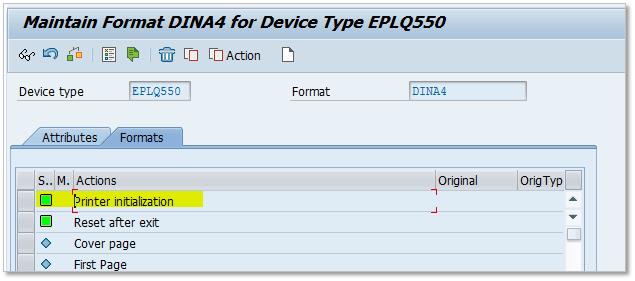
Now we need to write printer specific code to set page length on printer along with some other commands on Printer initialization. What we can do here is copy code from Print Initialization of DINA4 format and change that to match our Page Length.
In the list of format types supported by device type double click on DINA4 and then go to Printer initialization section.


Comments
Post a Comment